You haven't signed in yet, you can have a better experience after signing in
*Please complete the payment within {{receiveCouponInfo.expire_at}}Previous use*
You haven't signed in yet, you can have a better experience after signing in



Activity Rules
1、Activity time:{{ info.groupon.start_at }} ~ {{ info.groupon.end_at }}。
1、Activity time:cease when sold out。
2、Validity period of the Group Buying:{{ info.groupon.expire_days * 24 }} hours。
3、Number of Group Buying:{{ info.groupon.need_count }}x。
Please Pay Attention
1、Teamwork process: Join/initiate a Group Buying and make a successful payment - Within the validity period, the number of team members meets the activity requirements - Group Buying succeeded!
2、If the number of participants cannot be met within the valid period, the group will fail, and the paid amount will be refunded in the original way.
3、The number of people required and the time of the event may vary among different products. Please pay attention to the rules of the event.
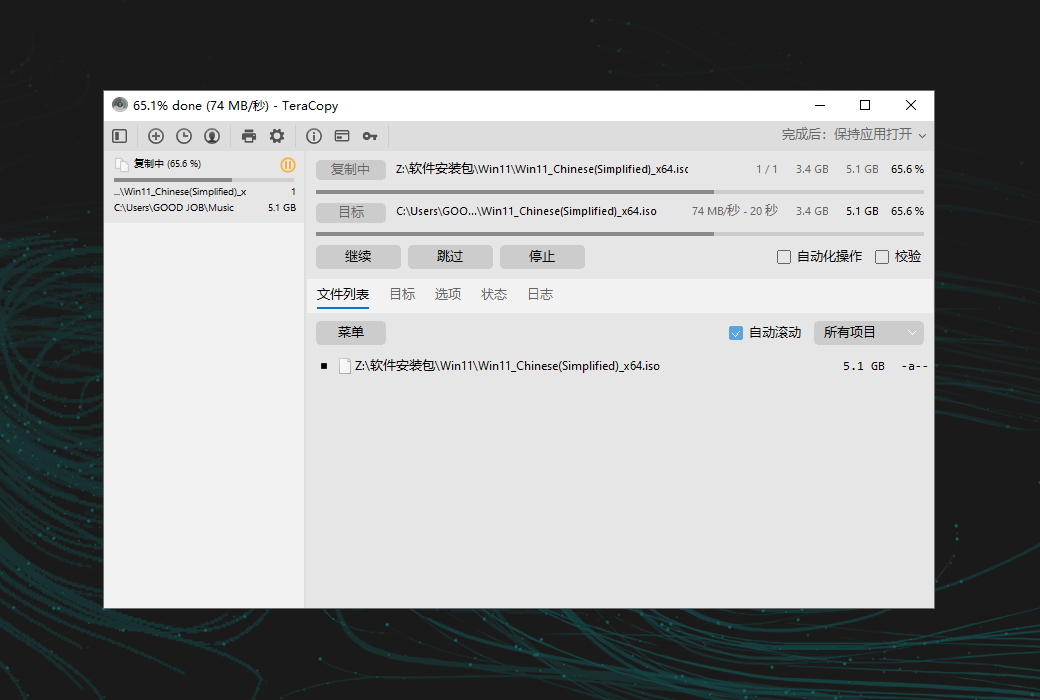
TeraCopy enhances the basic file copy and move functionality of the Windows system to simplify file management tasks.
Everything Under Control
If a copy error occurs, TeraCopy will simply skip the problematic file without terminating the entire transfer. It will also wait for the network or device to reconnect. You can manually skip unnecessary files to reduce transfer time. After the transfer, you can easily retry only the failed or skipped files.
Automation
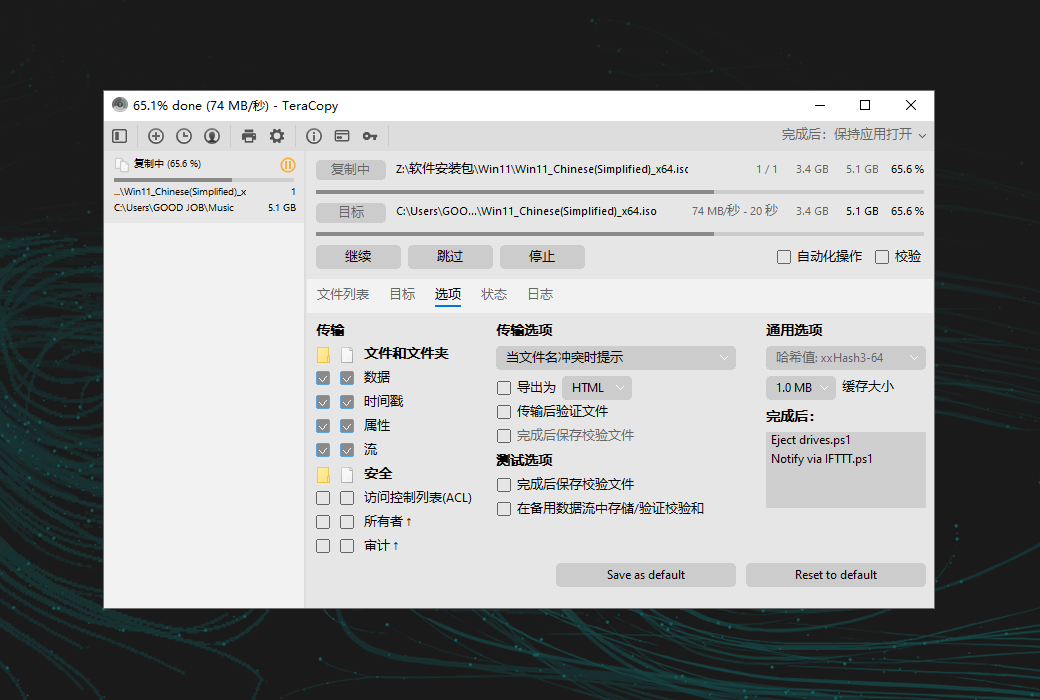
You can actively handle file name conflicts. In unattended transfers, TeraCopy enables "Skip All" mode to prevent interruptions. It can also verify file integrity, generate reports, and checksum files, and automatically run PowerShell scripts after completion.
File Verification
TeraCopy supports 17 checksum algorithms (over 50 variants), including CRC32, MD5, SHA1, BLAKE3, xxHash3, etc., to verify file integrity. It can verify whether the destination file is the same as the source file and can also generate or verify checksum files.
Interactive File List
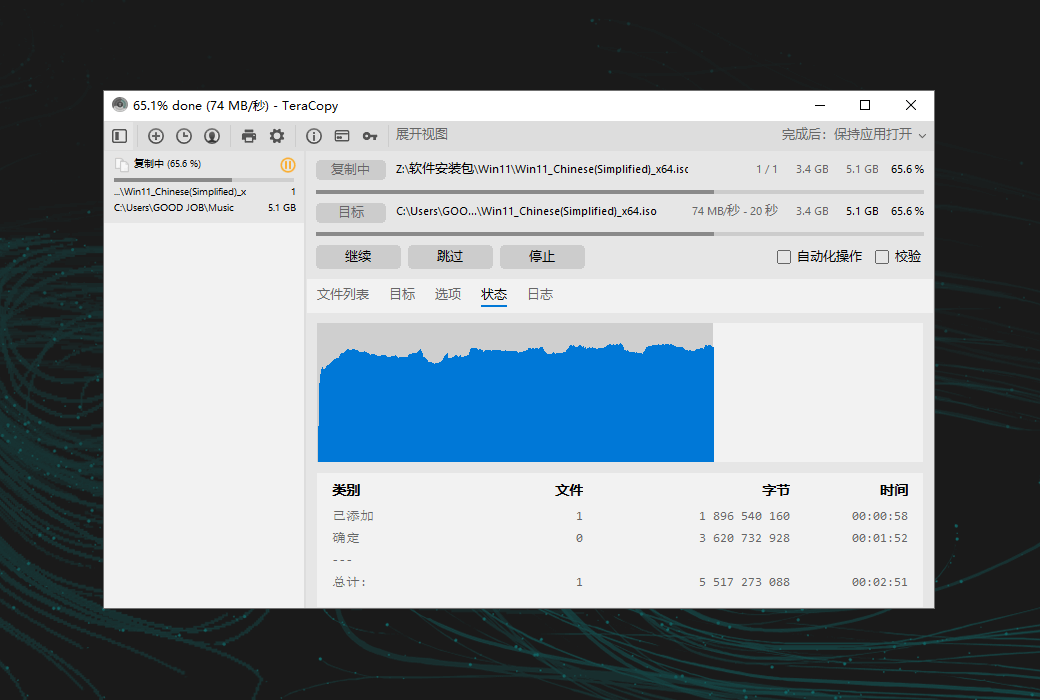
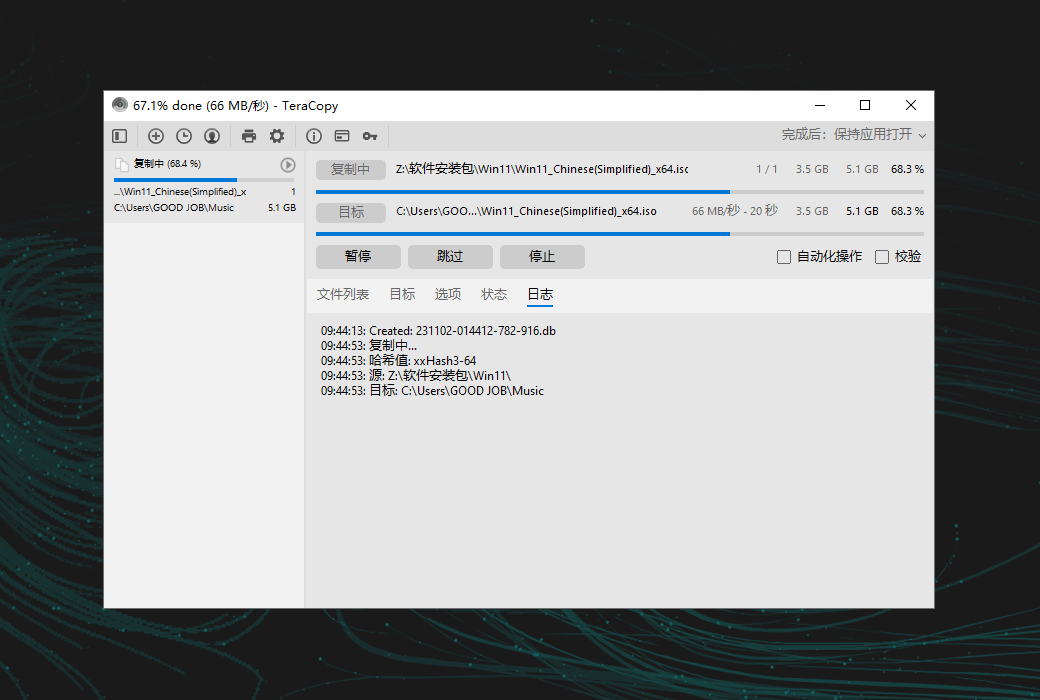
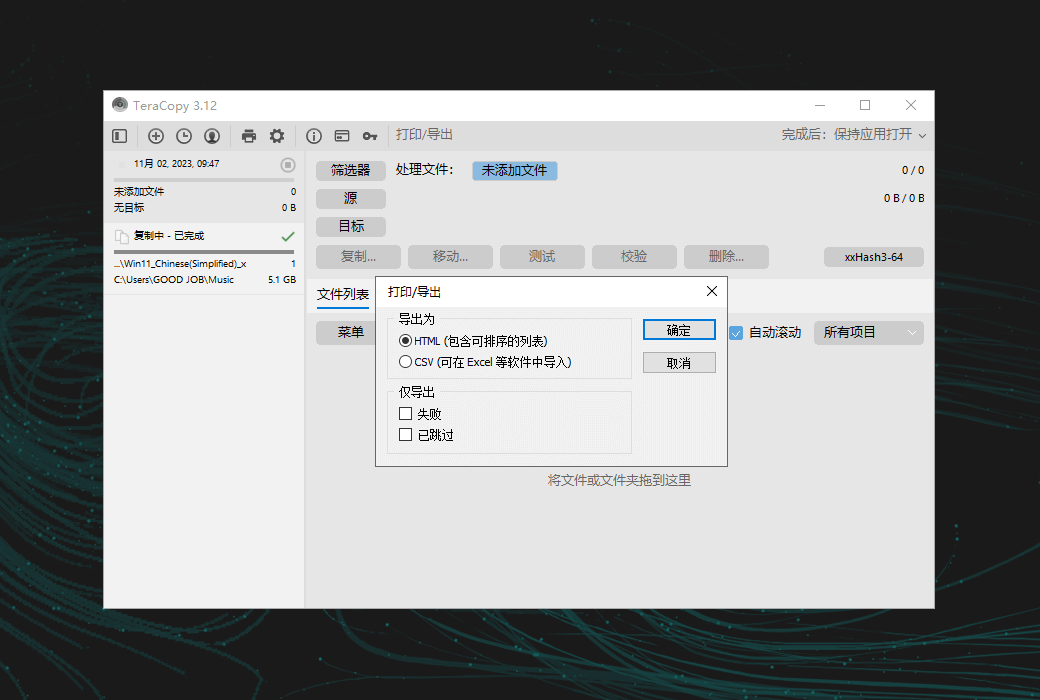
In TeraCopy, the file list doubles as a log file, displaying file names, sizes, source and destination checksums, and any issues encountered during the entire process. TeraCopy Pro allows for file list editing and automatic application of an ignore list, enabling you to skip unnecessary files.
Task Queue and History
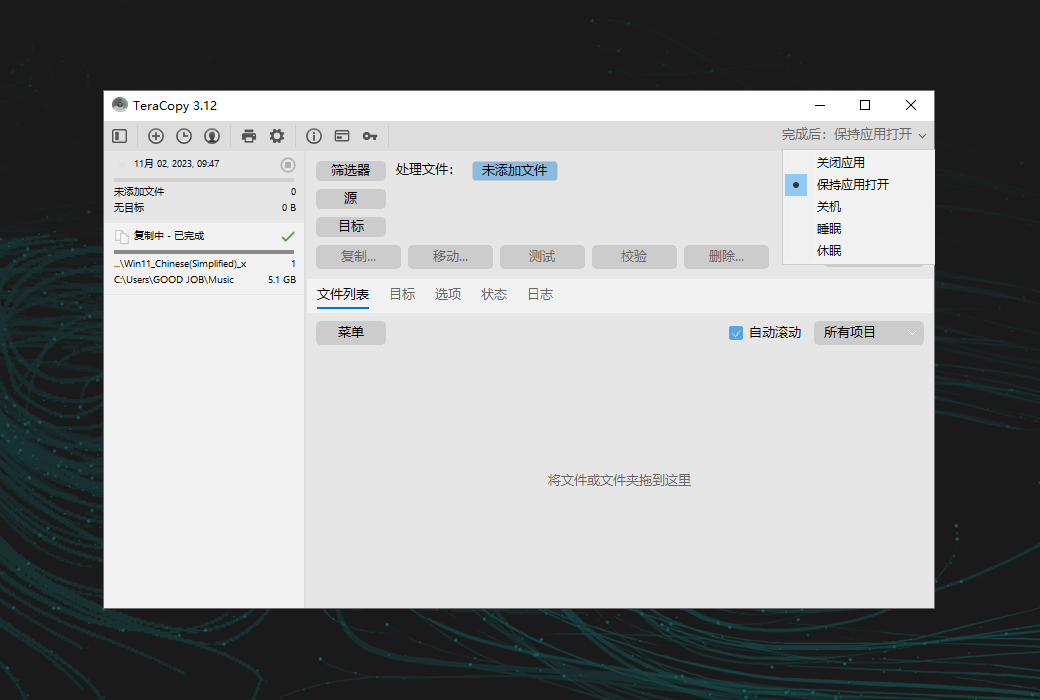
TeraCopy allows you to queue multiple file transfer operations, ensuring they are executed one after another instead of starting multiple transfers simultaneously. Additionally, TeraCopy retains all tasks and their associated file lists for a few days, allowing you to view them later for troubleshooting or reference purposes.
.Official website:https://codesector.com/teracopy
Download Center:https://teracopy.apsgo.cn
Shipping time:24-hour automatic shipping
Operating Platform:Windows
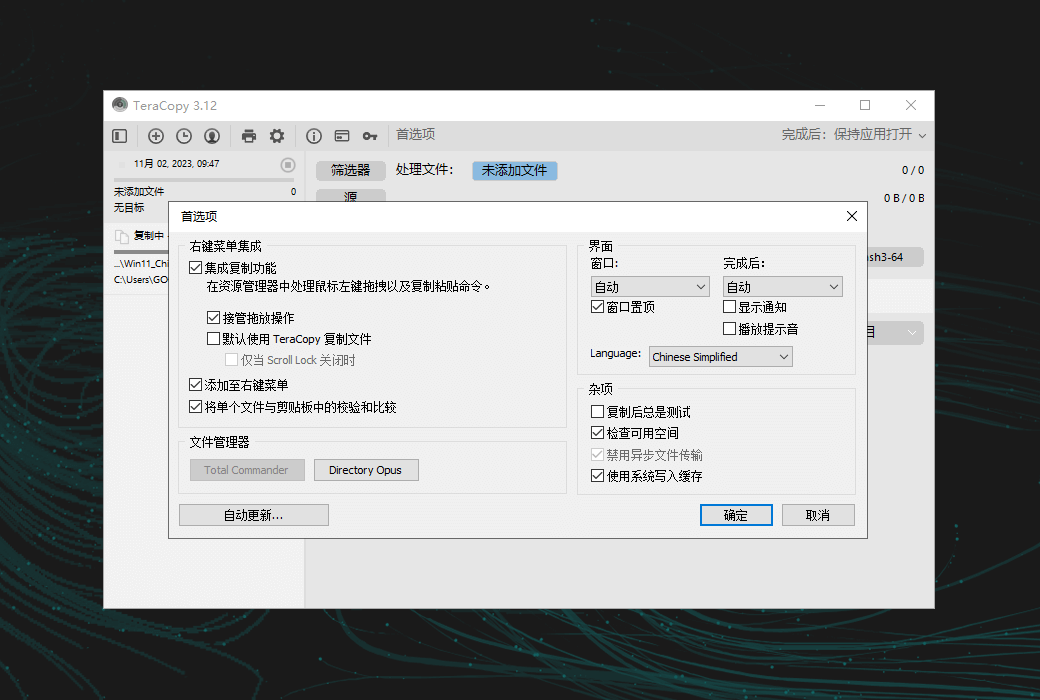
Interface language:Supports Chinese interface display and multiple language options.
Update Description:Lifetime version, supports minor version updates.
Trial before purchase:Free trial is available before purchase.
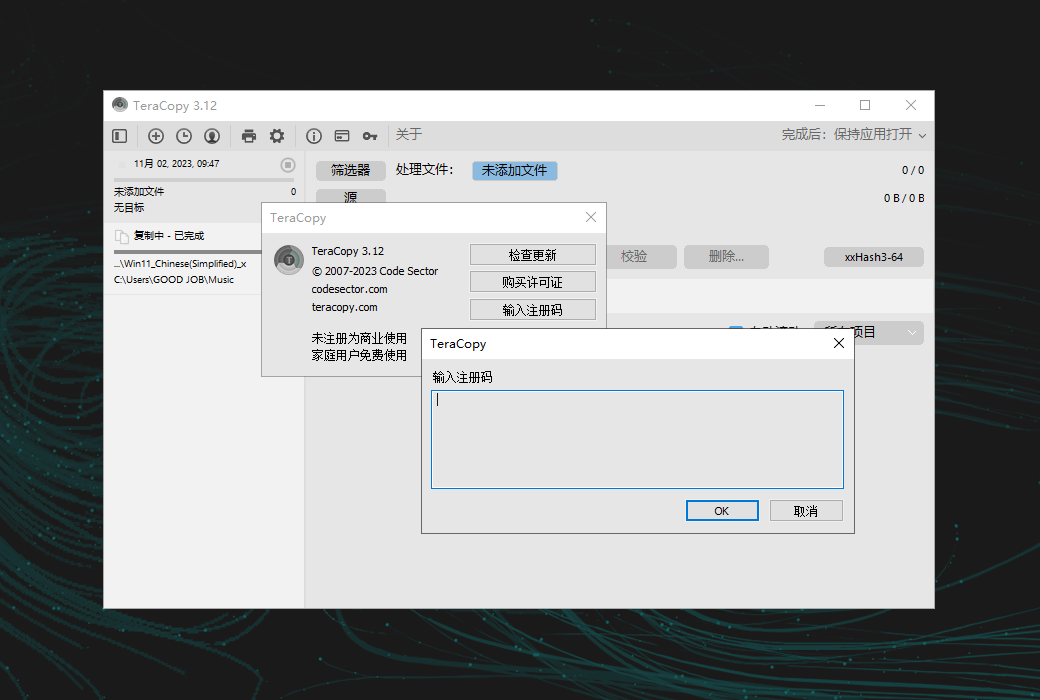
How to receive goods:After purchase, the activation information will be sent to the email address at the time of placing the order, and the corresponding product activation code can be viewed in the personal center, My Orders.
Number of devices:Can install 2 computers.
Replace computer:Uninstall the original computer and activate the new computer.
Activation guidance:To be added.
Special note:To be added.
reference material:https://help.codesector.com/knowledge-bases/41-getting-started

Any question

If it is necessary to copy many small files over the network, even with multi-threaded replication, it may take a long time. This guide will show you how to add an entry to the TeraCopy drag and drop confirmation dialog box for batch files, which will:
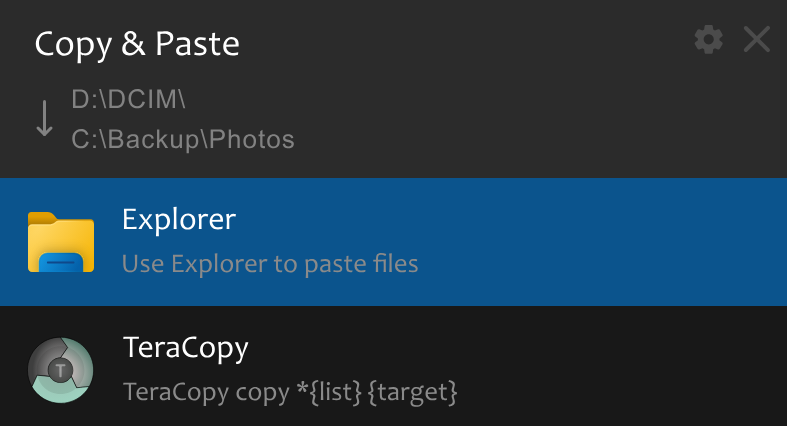
Save this code to the 7zipCopy.bat file:
@echo off
setlocal enabledelayedexpansion
REM Check if the correct number of arguments is provided
if "%~1"=="" (
echo Usage: 7zipCopy.bat input_file.txt temp_folder target
echo 1. 7-Zip will pack files listed in 'input_file.txt' to 'temp_folder'.
echo 2. TeraCopy will copy 'temp_folder' to 'target'.
exit /b 1
)
REM Set variables
set input_file=%~1
set outputDir=%~2
set target_path=%~3
set output_file=output_paths.txt
set zip_prefix=archive
REM Check if the input file exists
if not exist "%input_file%" (
echo Input file not found: %input_file%
exit /b 1
)
REM Check if the temp folder exists
if not exist "%outputDir%" (
echo Temp folder not found: %outputDir%
exit /b 1
)
REM Ask user whether to clear the temp folder
echo Temp folder: %outputDir%
set /p clear_temp=Delete all files in this folder (Y/N)?
if /i "!clear_temp!"=="Y" (
echo Clearing temp folder...
del /q "%outputDir%\*"
if %errorlevel% neq 0 (
echo Failed to clear the folder.
exit /b 1
)
echo Temp folder cleared.
) else (
echo Temp folder not cleared.
)
REM Initialize the zip file name
set zipFileName=%outputDir%\%zip_prefix%.zip
REM Store files with no compression (-mx0) in 10 GB volumes (-v10g)
"C:\Program Files\7-Zip\7z.exe" a -tzip -mx0 -v10g "%zipFileName%" "@%input_file%" -bb
if errorlevel 1 (
echo Compression failed.
pause
exit /b 1
)
"C:\Program Files\TeraCopy\TeraCopy.exe" copy "%outputDir%" "%target_path%"
Press Win+R, enter%APPDATA%\TeraCopyThen press Enter.
Add this text to the end of the PasteMenu.ini file:
[5]
title=7zip + Copy
path=cmd.exe
parameters=/K C:\Your\Path\7zipCopy.bat "{list}" "C:\Temp\Archive "{target}"
takeC:\Temp\ArchiveReplace with any existing empty folder.
After copying, you can decompress the archive on the target computer.