You haven't signed in yet, you can have a better experience after signing in
*Please complete the payment within {{receiveCouponInfo.expire_at}}Previous use*
You haven't signed in yet, you can have a better experience after signing in



Activity Rules
1、Activity time:{{ info.groupon.start_at }} ~ {{ info.groupon.end_at }}。
1、Activity time:cease when sold out。
2、Validity period of the Group Buying:{{ info.groupon.expire_days * 24 }} hours。
3、Number of Group Buying:{{ info.groupon.need_count }}x。
Please Pay Attention
1、Teamwork process: Join/initiate a Group Buying and make a successful payment - Within the validity period, the number of team members meets the activity requirements - Group Buying succeeded!
2、If the number of participants cannot be met within the valid period, the group will fail, and the paid amount will be refunded in the original way.
3、The number of people required and the time of the event may vary among different products. Please pay attention to the rules of the event.
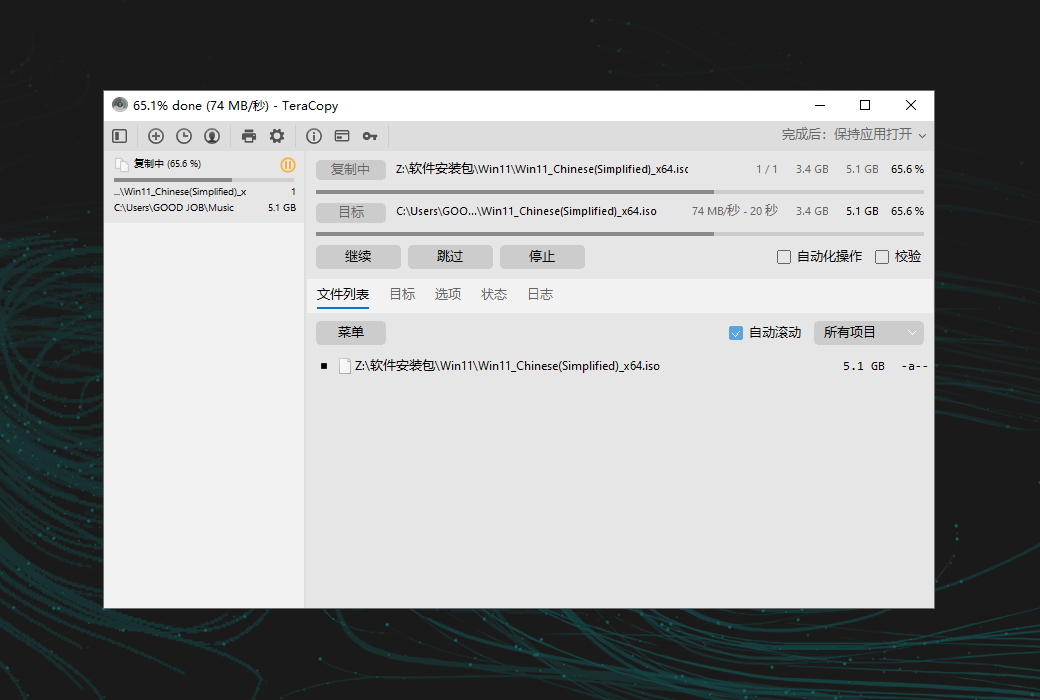
TeraCopy enhances the basic file copy and move functionality of the Windows system to simplify file management tasks.
Everything Under Control
If a copy error occurs, TeraCopy will simply skip the problematic file without terminating the entire transfer. It will also wait for the network or device to reconnect. You can manually skip unnecessary files to reduce transfer time. After the transfer, you can easily retry only the failed or skipped files.
Automation
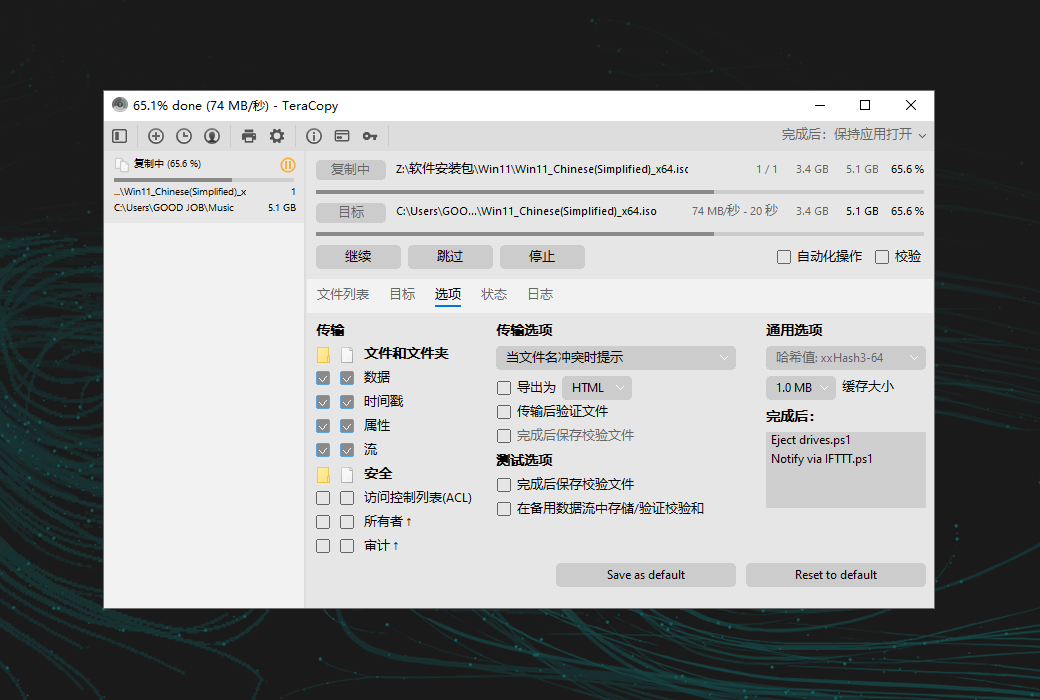
You can actively handle file name conflicts. In unattended transfers, TeraCopy enables "Skip All" mode to prevent interruptions. It can also verify file integrity, generate reports, and checksum files, and automatically run PowerShell scripts after completion.
File Verification
TeraCopy supports 17 checksum algorithms (over 50 variants), including CRC32, MD5, SHA1, BLAKE3, xxHash3, etc., to verify file integrity. It can verify whether the destination file is the same as the source file and can also generate or verify checksum files.
Interactive File List
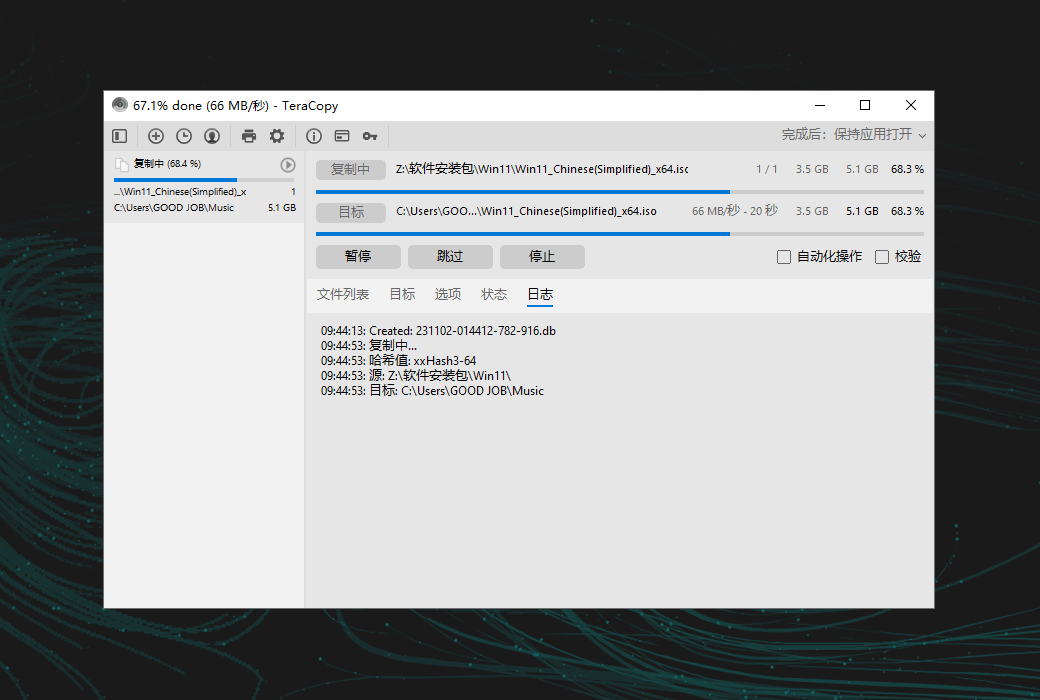
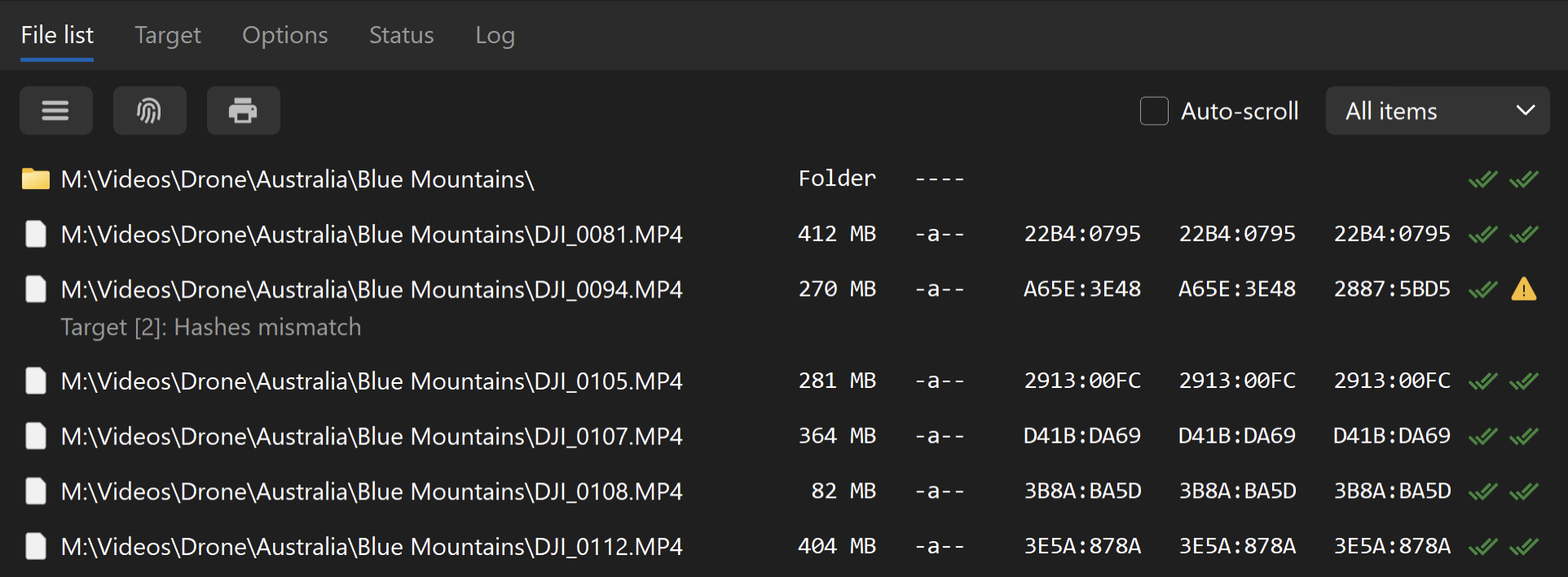
In TeraCopy, the file list doubles as a log file, displaying file names, sizes, source and destination checksums, and any issues encountered during the entire process. TeraCopy Pro allows for file list editing and automatic application of an ignore list, enabling you to skip unnecessary files.
Task Queue and History
TeraCopy allows you to queue multiple file transfer operations, ensuring they are executed one after another instead of starting multiple transfers simultaneously. Additionally, TeraCopy retains all tasks and their associated file lists for a few days, allowing you to view them later for troubleshooting or reference purposes.
.Official website:https://codesector.com/teracopy
Download Center:https://teracopy.apsgo.cn
Shipping time:24-hour automatic shipping
Operating Platform:Windows
Interface language:Supports Chinese interface display and multiple language options.
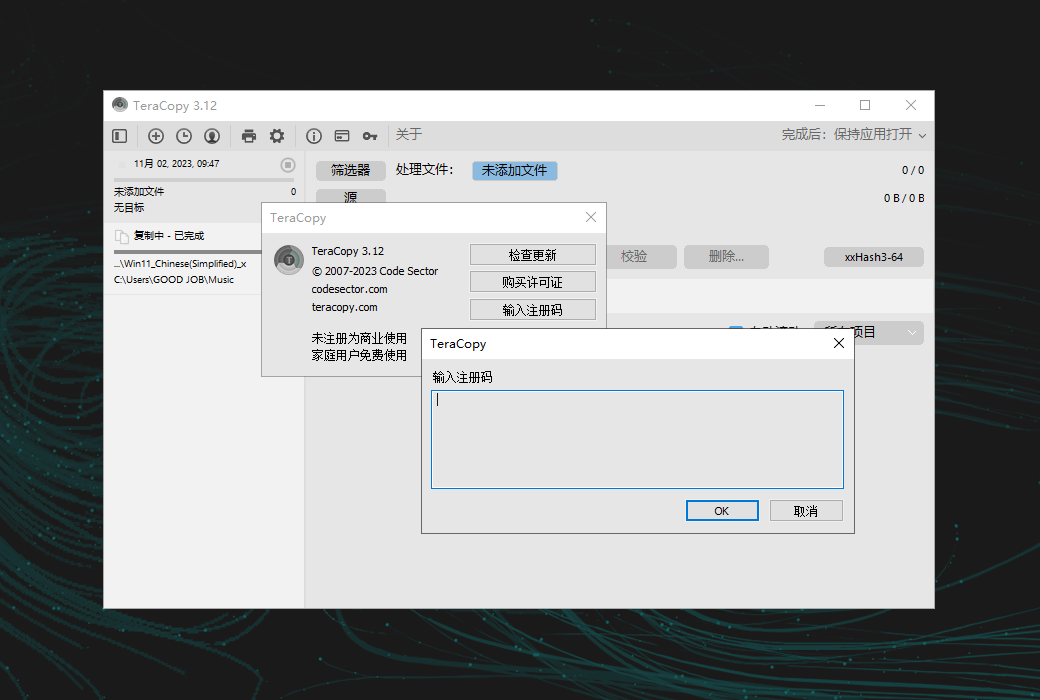
Update Description:Lifetime version, supports minor version updates.
Trial before purchase:Free trial is available before purchase.
How to receive goods:After purchase, the activation information will be sent to the email address at the time of placing the order, and the corresponding product activation code can be viewed in the personal center, My Orders.
Number of devices:Can install 2 computers.
Replace computer:Uninstall the original computer and activate the new computer.
Activation guidance:To be added.
Special note:To be added.
reference material:https://help.codesector.com/knowledge-bases/41-getting-started

Any question

Start transmitting
You can use different methods to initiate file copying operations.
Drag and drop
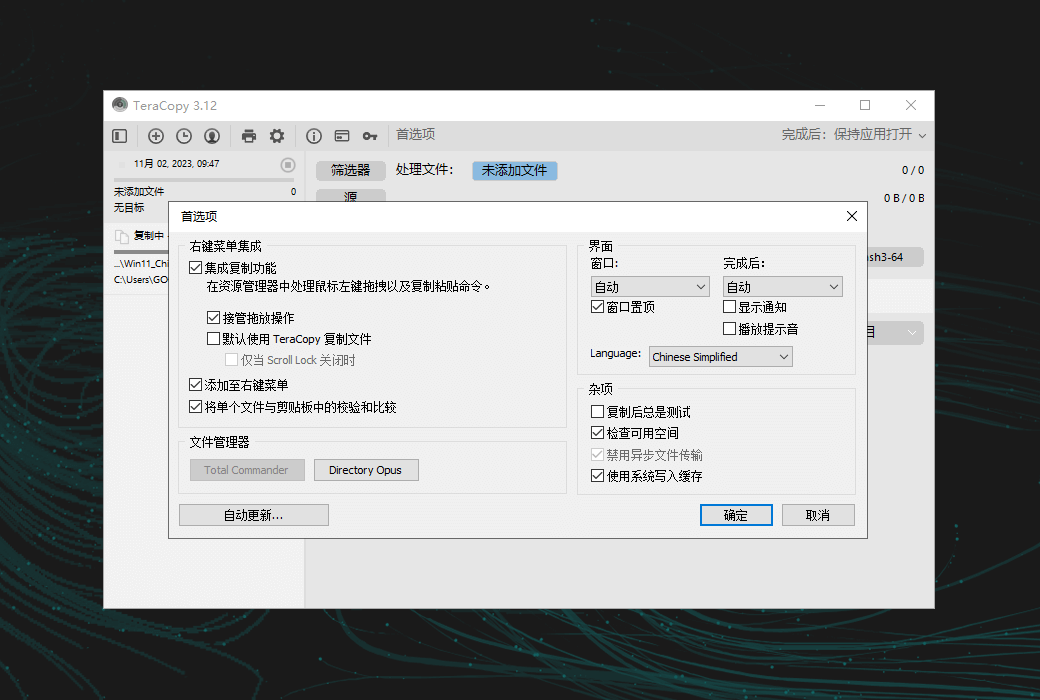
Drag and drop files between Explorer windows or use copy/paste commands (Ctrl+C, Ctrl+V). This window will appear, allowing you to choose between Explorer and TeraCopy
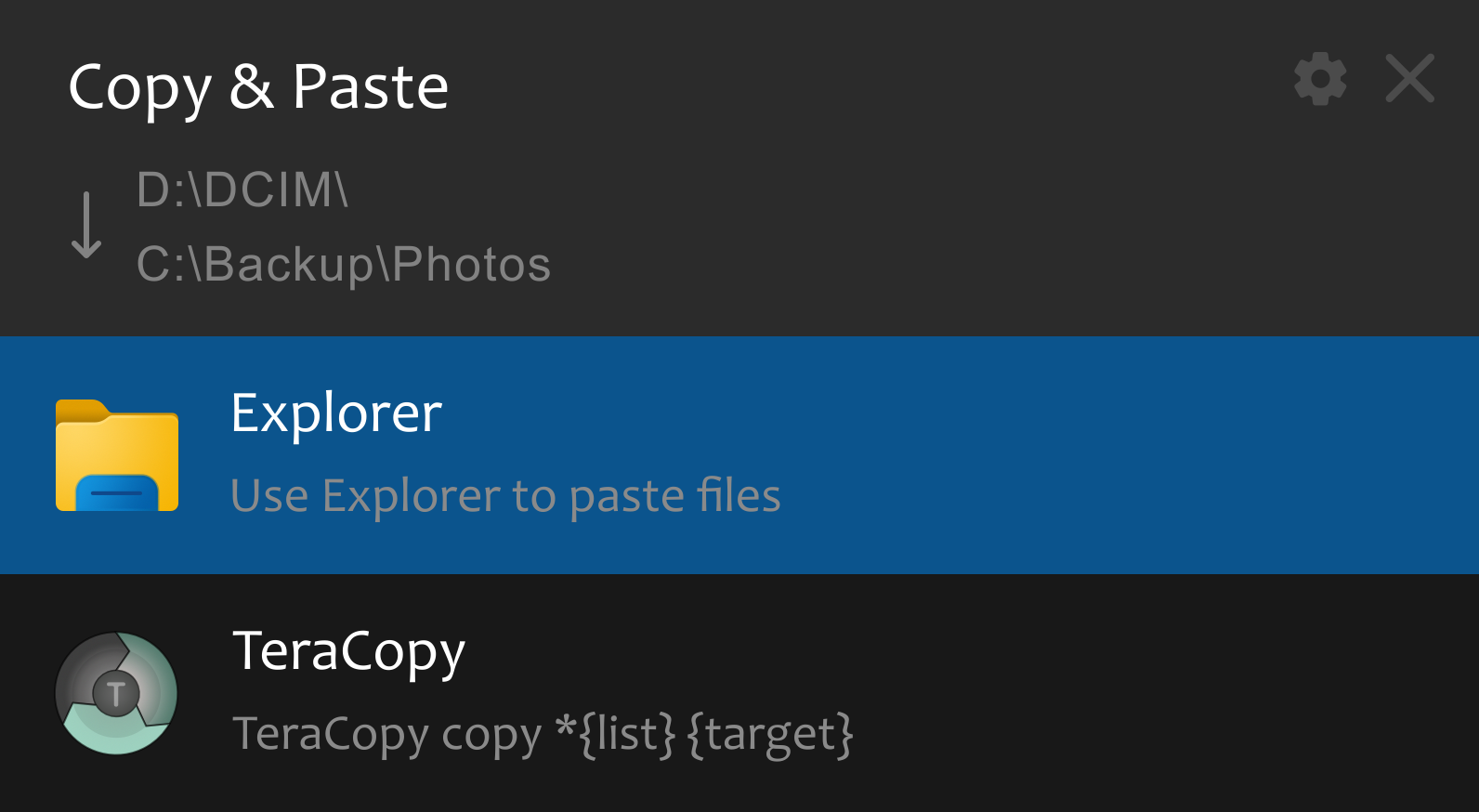
Skip this window and always use TeraCopy
Resource Manager Context Menu
opening menu
Note: You can use drag and drop operations at any time to add other files to the TeraCopy file list.
Total Commander software
To integrate TeraCopy with Total Commander, click the 'Add button' in the TeraCopy configuration window to integrate the buttons.
Catalog Works
You can use the following command to add custom buttons:
%ProgramFiles% \ TeraCopy \ TeraCopy.exe Copy * {allfilepath | filem} {destpath}
%ProgramFiles% \ TeraCopy \ TeraCopy.exe Move * {allfilepath | filem} {destpath}
File copying process
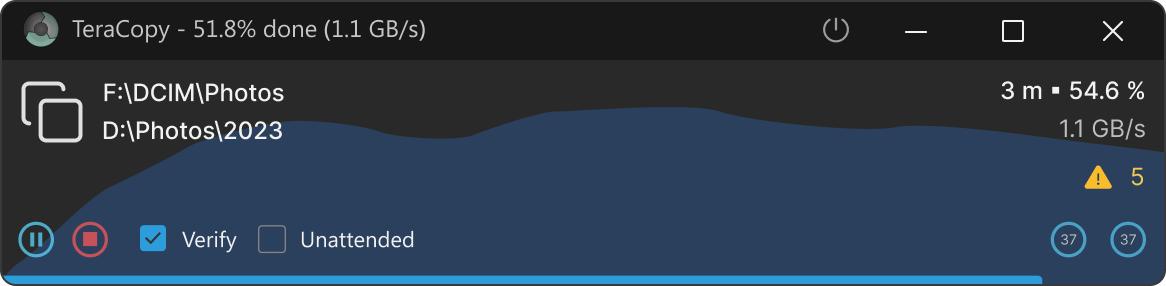
If necessary, you can pause or even stop file transfer, such as restarting. Just restart TeraCopy later, open the last file list, and then click the 'Copy' button again to restore.
TeraCopy will copy the file and calculate its checksum instantly. These checksums can later be used to verify the integrity of copied files or saved as checksum files, such as. md5 or. sha.
Document verification process
To ensure that the file is written correctly, you can click“verification”Button.
TeraCopy will start reading files from the target drive and calculating the checksum. Afterwards, the checksum of the source file and the target file will be compared. TeraCopy displays aDouble check markIcon and matching checksum.
You can repeat the verification process later to ensure that the target file remains undamaged, even if the source device does not exist.
After the process is completed
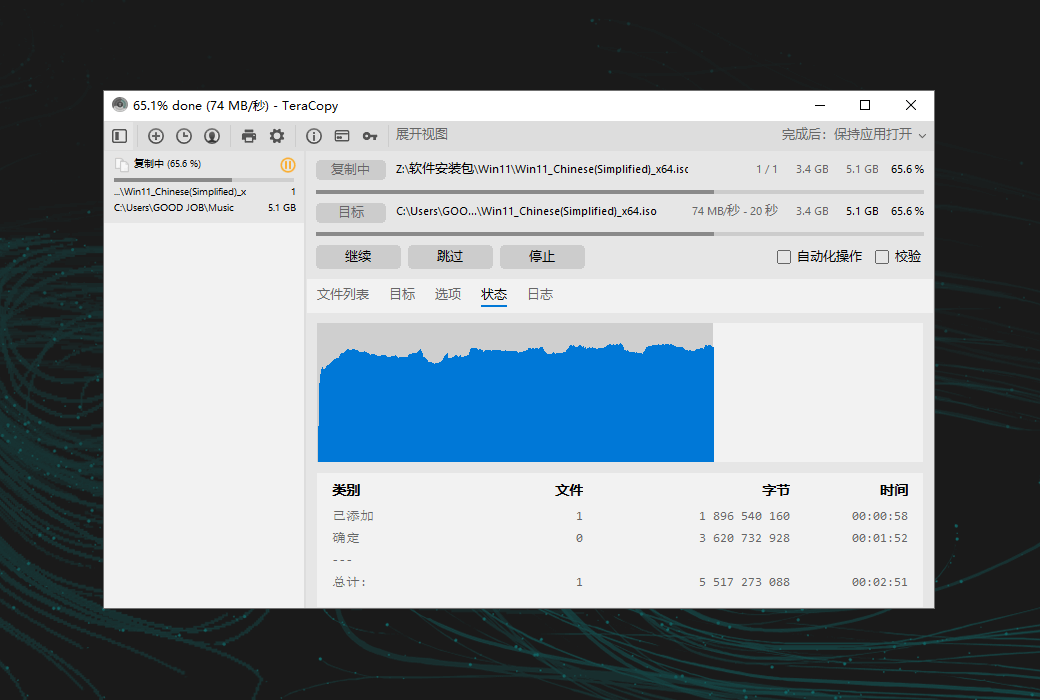
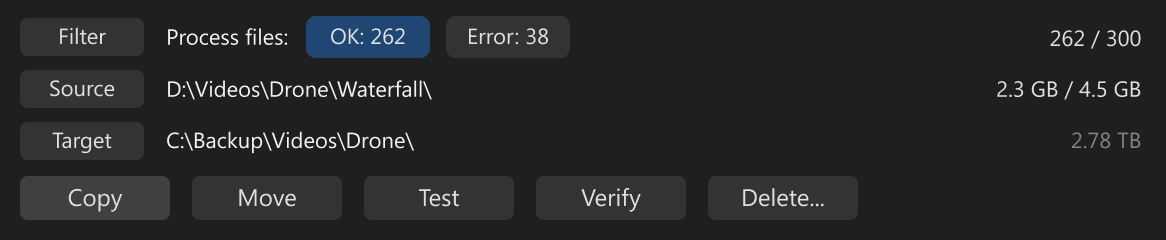
After completing the process, TeraCopy will provide a status summary. The 'Results' button in the upper left corner indicates the overall status, and if any errors are detected, it will turn red. Next to this button, display the count of successfully processed files, files with errors, and skipped files.
In the file list below, each file is labeled with a status icon and a message indicating its result. Files with errors will display warning icons, highlighting issues such as mismatches or transmission failures. The detailed messages below each file path explain the specific nature of any errors, helping you determine what went wrong.
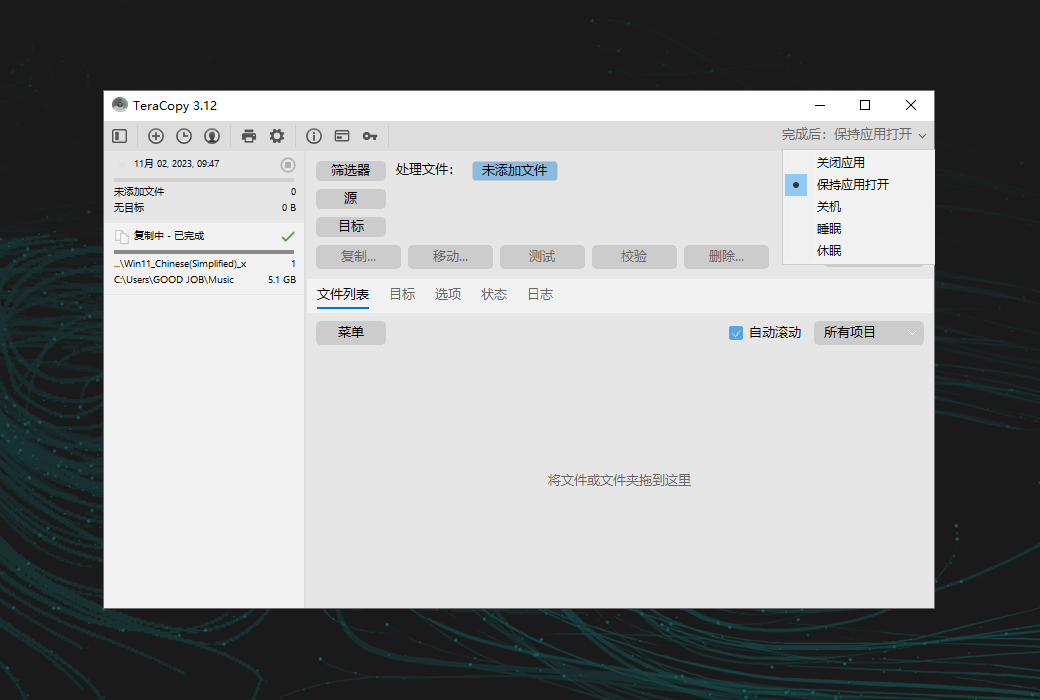
After completing a process, TeraCopy can automatically save checksum files, generate reports, and run PowerShell scripts. To make settings, please openOptions tab.
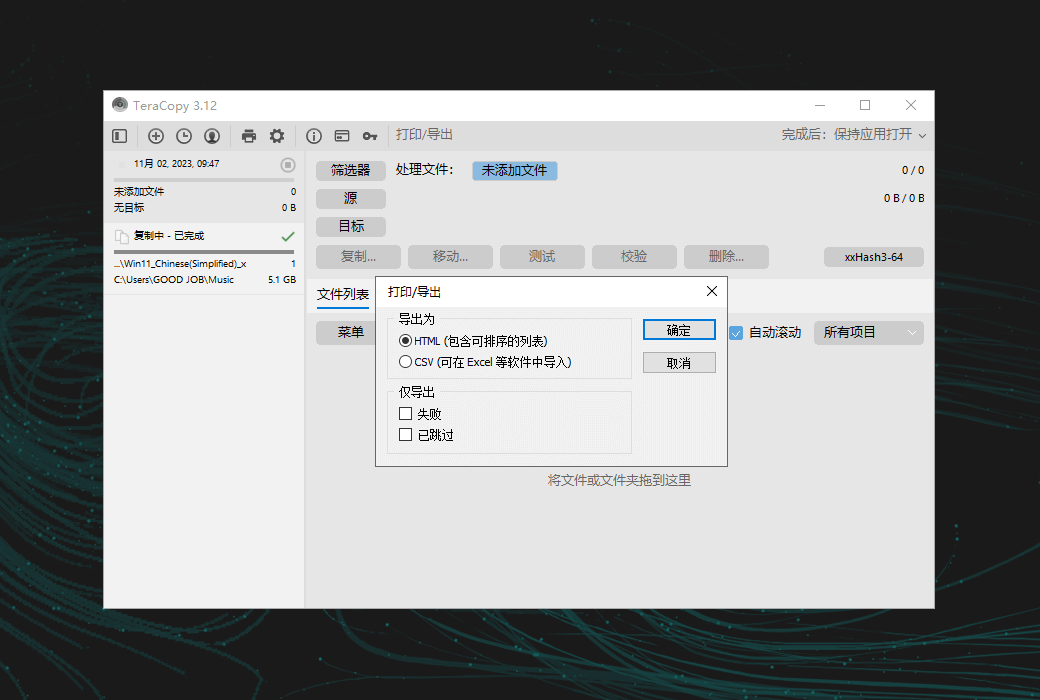
To manually save the checksum file, click after the verification processSave HashButton, or use the button with fingerprint icon in the file list toolbar.
solve the problem
Most problems are caused by insufficient user permissions leading to 'access'The question was rejected”Error.
Check user permissions
Ensure that your account has the necessary permissions:
Run as an administrator
Running TeraCopy as an administrator can solve access issues:
Retry operation
Click the Next button.
Select the file to be processed:
Click again“copy”Or“move”Button.
be careful: TeraCopy does not check for new files added to the source since the last operation; It only processes files from the original task.